

Fields and templates
Checklists, temperatures, counts, and photos. Add fields to a task, and save it as a template to reuse it.
Fields are what someone fills in on a task. They turn "make sure the fridge is cold" into a question that asks for the temperature, and they keep the answer along with who entered it and when.
Add fields to a task
- Click New task.
- Click Add field for each question.
- Click Create task.
Save a template
A template is a task made ready to reuse, with its fields and anything else you set, such as who it's for. Leave anything blank to choose it each time.
- In New task, click More, then under Shows click Template.
- Enter a template name. It can differ from the task title.
- To report on entries later, check Log entries. Otherwise answers are deleted with the task.
- Click Save template.
To start a task from a template, choose it under From a template. To start every task from one, click Make default on the Templates page, or set Default template in a board's settings. A board's default comes first.
Every field has a title and optional instructions that appear under it. Use the instructions for the part people tend to get wrong. For example, on a photo of the bakery case: "Stand back far enough to get the whole case, with the lights on."
Field types
-
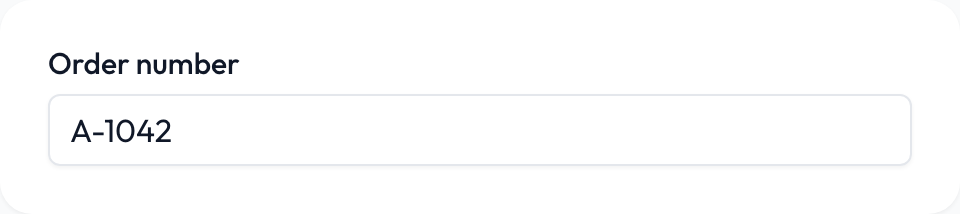
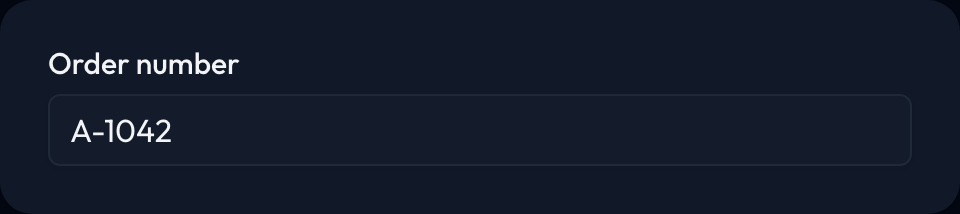
Short text: One line, like a name, an order number, or an email address. You can limit its length, require a format such as an email address, or enter a set of allowed answers, which appears as a dropdown.
-
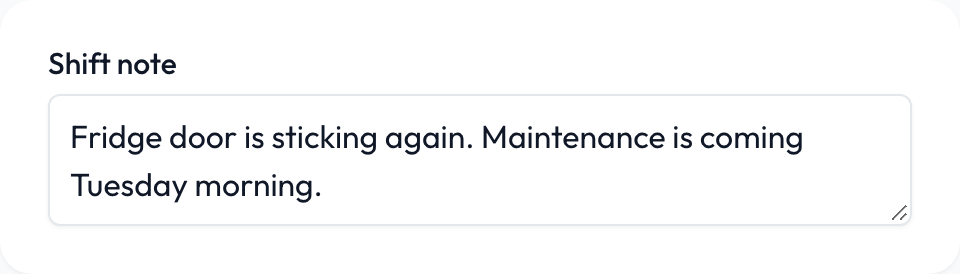
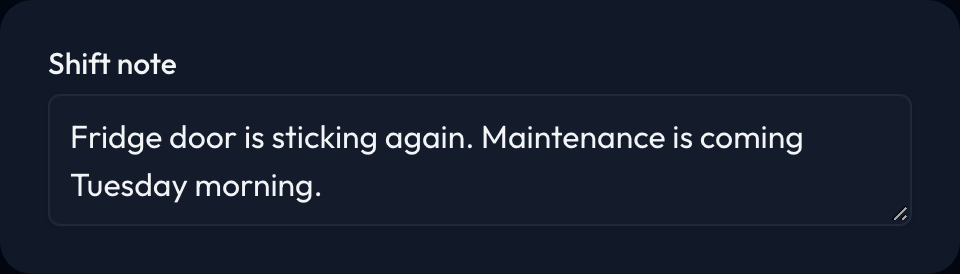
Long text: Several lines, like a shift note or a description of a problem. You can limit its length and allow voice answers, which helps when typing on a phone is the reason people don't write much.
-
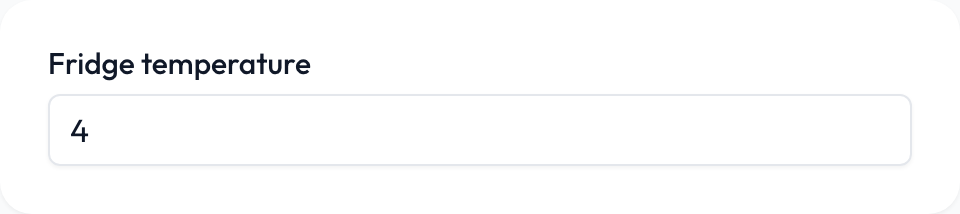
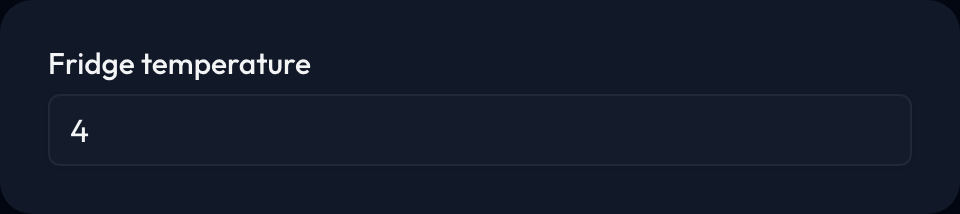
Number: Anything you may want to compare, like a temperature or a till count. You can set a lowest and highest allowed number, and the lowest can be negative, like -18 for a freezer.
-
Yes or no: A single check box, for a confirmation like "Doors locked." Leaving it unchecked counts as an answer of no.

-
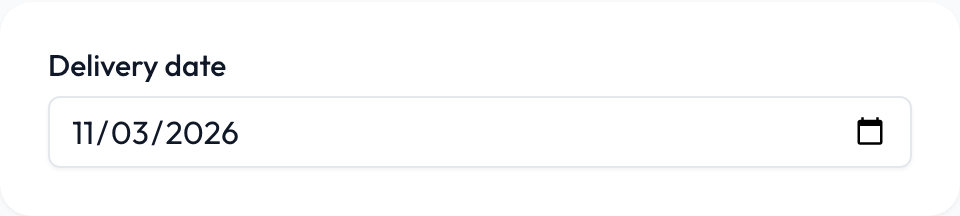
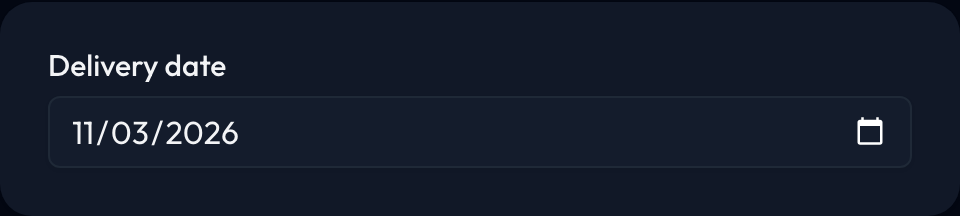
Date: One day picked from a calendar, like a delivery date or an expiration date.
-
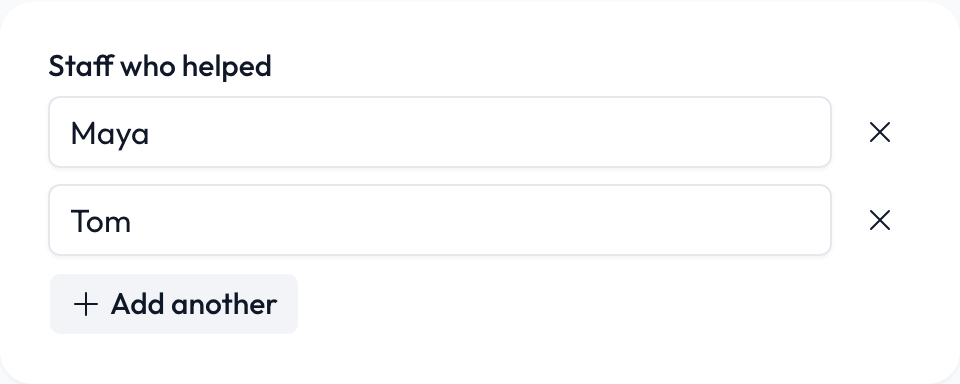
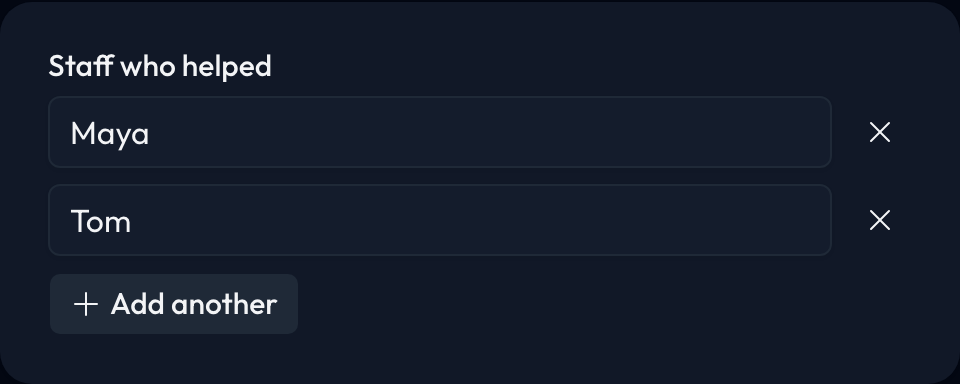
List: Several answers that people type themselves, when you can't know them in advance, like the names of the staff who helped. You can require up to 10 answers.
-
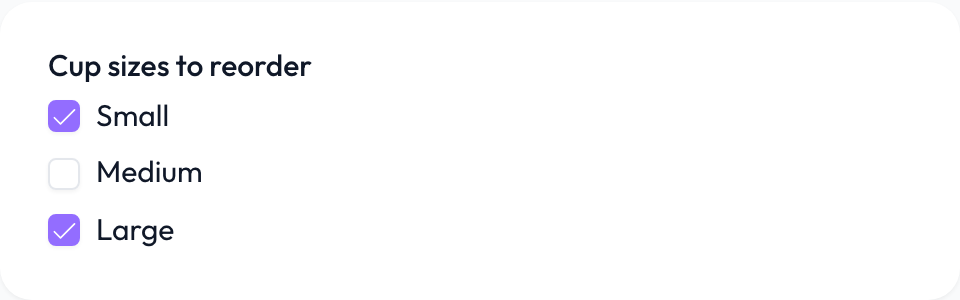
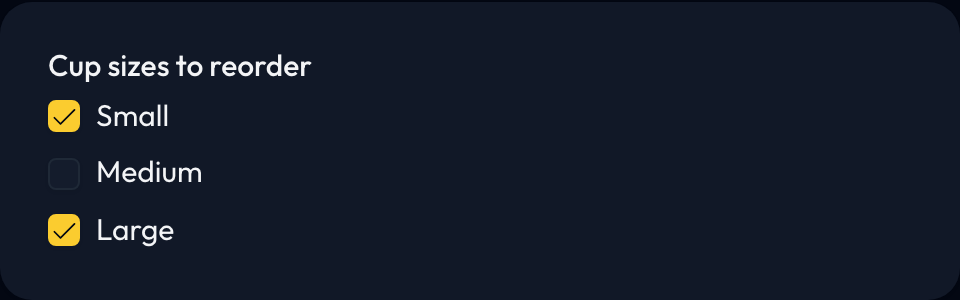
Multiple choice: Answers you write, shown as check boxes. Select Allow only one answer to show radio buttons instead. Use it when you know the possible answers and want them consistent, like Small, Medium, and Large.
-
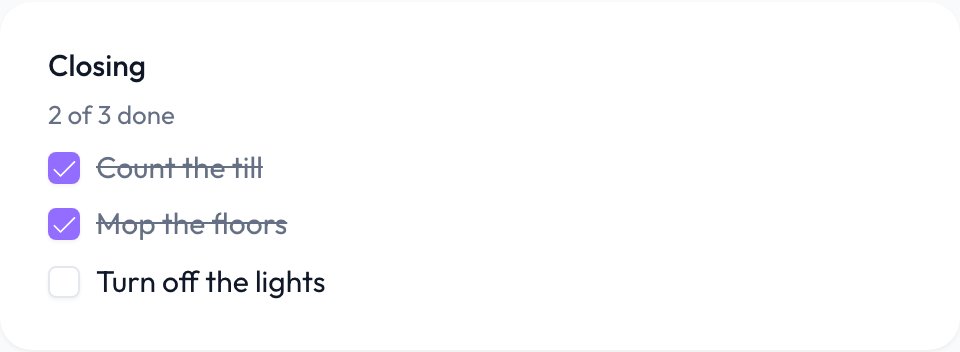
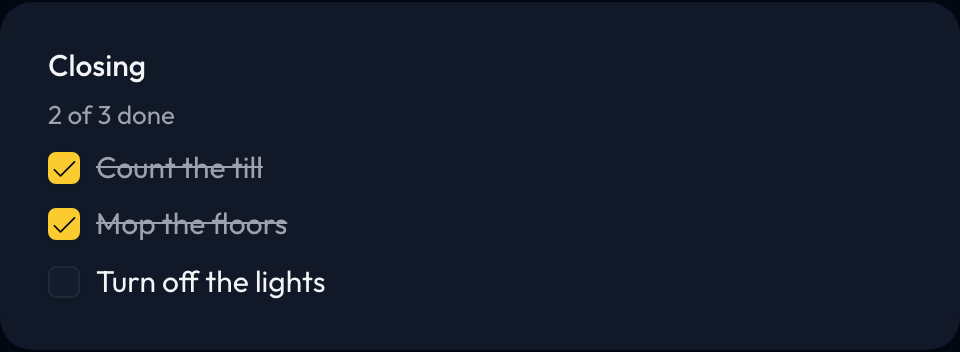
Checklist: Items to complete, like the steps for closing the store. Skidle keeps who checked off each item, and when. Unlike multiple choice, it records work done, so a partly finished list is still a valid answer. It can't be required.
-
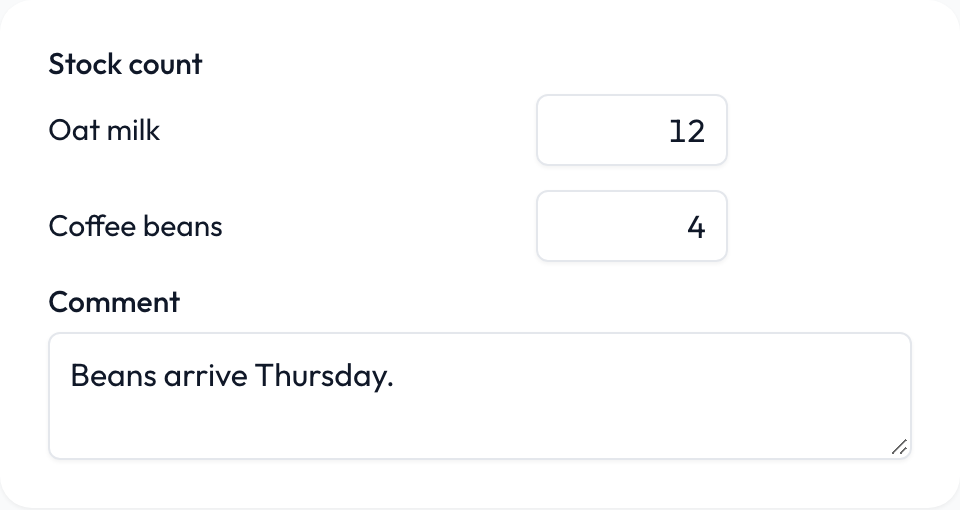
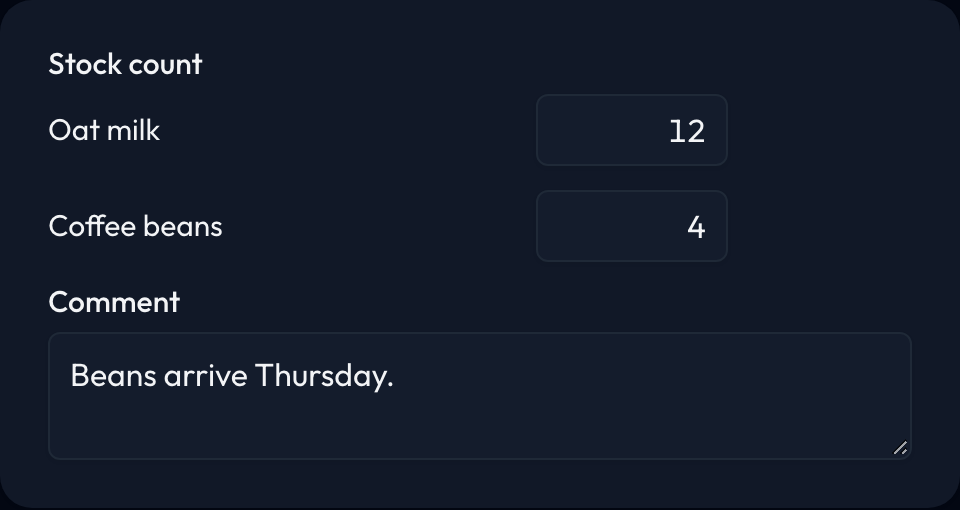
Inventory: Things to count, each with an optional unit like bags, bottles, or cases. A blank count means "didn't count it," so you can tell it apart from zero. It ends with a comment box unless you turn that off, and it can't be required.
-
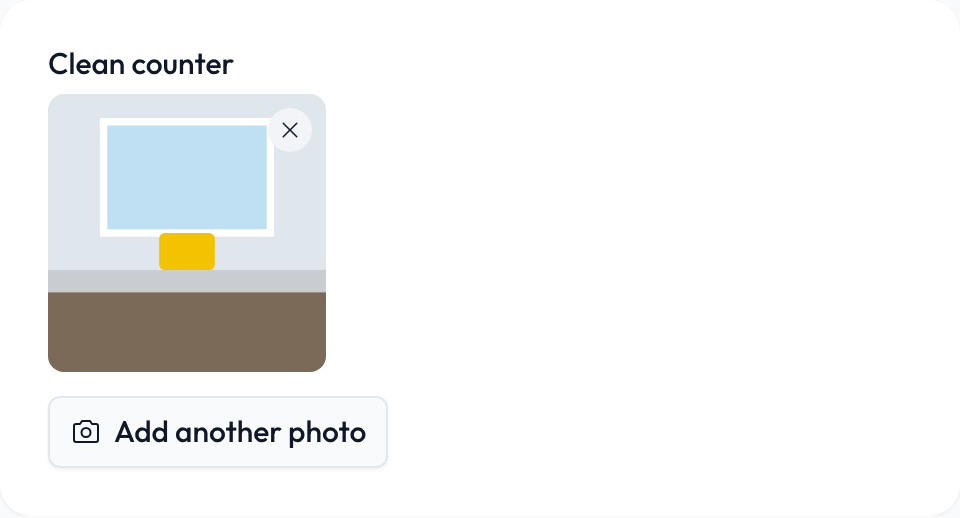
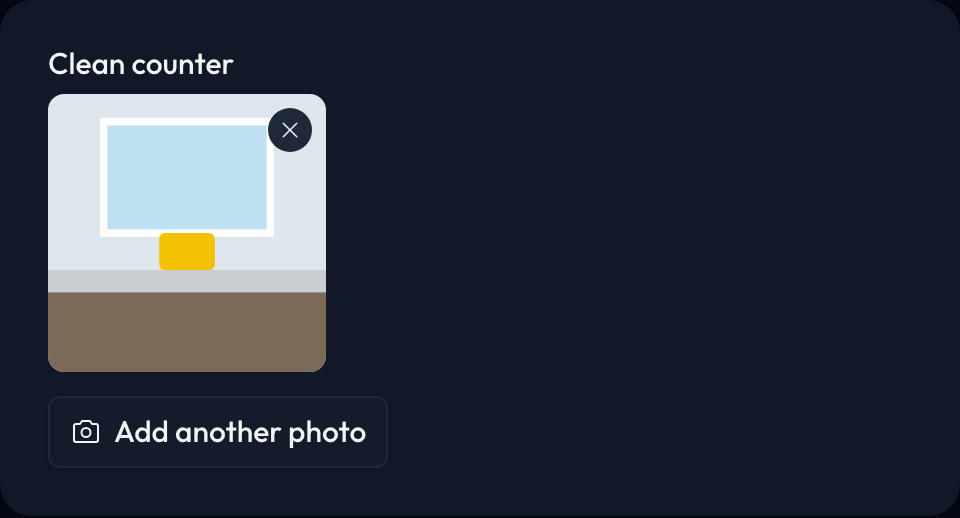
Photo: Proof of what someone saw or did, like a clean counter or a damaged delivery. You can require from 1 to 10 photos. Use the instructions to say what to photograph.
-
Tags: Labels you name, each with a color, like Vegan or Needs repair. Select Allow only one tag to limit it to one. Tags can't be required, because applying none is a valid answer.

-
Priority: Low, Medium, High, or Urgent.

-
Action button: Action buttons are an advanced feature that can be used to start a custom workflow.





Change a template later
If you change the fields of a task started from a template, the change applies to that task only unless you check Update for the template. Open tasks keep the version they started with.
Once someone has answered a version, it's locked. Changing the fields saves a new version, and Skidle tells you first. The template's name and settings like who it's for can change at any time.
Delete an old version
On the Templates page, each version has its own row. Click the three dots on an old version, then click Delete version. This permanently deletes the version and all its logged entries, with their history. It can't be undone. To delete the newest version, delete the template.
Export answers
On the Templates page, click Export to download logged entries as a PDF, a spreadsheet (CSV), or JSON. Choose a template and version, since each version is its own report, and an optional date range. Each answer is a row showing who last saved it and when, photos appear as a count, and only admins can export. Only templates with Log entries checked appear.
Submitting a task's fields can also start a workflow. An Action button starts its workflow only if it's on at Submit. For example, when someone submits the fridge log, a workflow can check the temperature and email the manager if it's over 41°F.